
How to Log In to Your Telegram Account: Code Link, tdata or Cloud Password
October 6, 2026
TgAccounts Support Desk· Customer support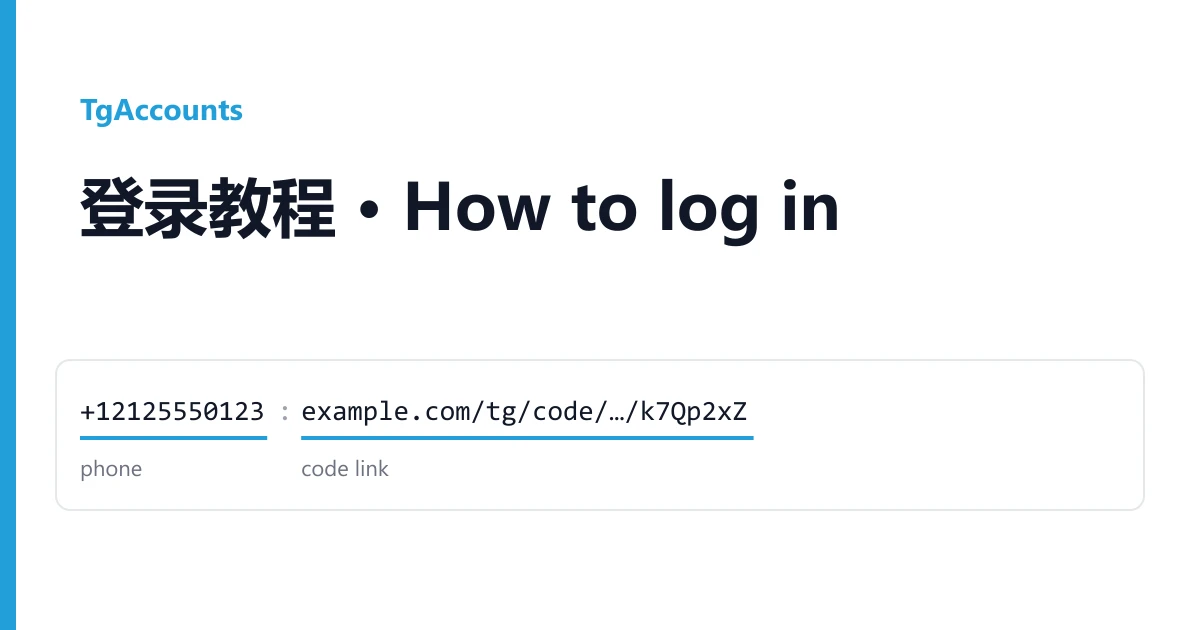
Your Telegram accounts are on your order page, not in your email. Open Dashboard → Orders, pick the order, and the box called Delivered accounts holds one account per line. Copy credentials copies all of it; Download saves it as a text file.
A Telegram delivery comes in one of two shapes. Either the line is a download link to an archive with a tdata folder inside, or it is a phone number followed by a web link. The two are opened in completely different ways, so look at your line first and then jump to the matching section.
Which kind of delivery do you have?
| Your line looks like | What it is | How you open it |
|---|---|---|
| A single link to a .zip or .rar file | An archive with a tdata folder, and on most batches a .session and a .json file | Telegram Desktop, already signed in, no code needed |
A phone number with its country code, a |, then a web link | A login by code: the link is a page that shows the code Telegram sends to that number | The Telegram app on your phone or computer, signing in with the number |
On listings with 2FA there is also a password. It sits in the .json file on most batches, or next to the number on phone-login batches. More on it below.
Phone number and code link
Here is the shape a customer actually received. The values are made up:
+12125550123|https://example.com/tg/code/3f1c9a2e-7d41-4b7e-9d21-5a6b7c8d9e0f/k7Qp2xZ
phone number | link to the page that shows the login code
Everything before the | is the number. Everything after it is the link. Do not paste the whole line anywhere.
- Open Telegram on your phone, or a fresh Telegram Desktop, and choose to sign in with a phone number.
- Pick the country and type the number exactly as delivered, without the
|and the link. - Telegram says it has sent a code. Now open the link from your line in a browser. The page shows the code that arrived for that number.
- Type the code into Telegram. If the account has a cloud password, Telegram asks for it next.
Timing matters here. Login codes expire quickly, so open the link right after Telegram says the code is on its way, and type it in straight away. If the page shows nothing yet, wait a minute and refresh it. An older code on the page belongs to an earlier attempt and will be refused.
tdata archive and Telegram Desktop
Telegram Desktop keeps its signed-in session in a folder called tdata. Put that folder into a copy of the app and it opens on the chat list, with no number and no code. A typical archive looks like this (names change from batch to batch):
12125550123/
  tdata/
  12125550123.session
12125550123.json- Download a fresh portable Telegram Desktop from telegram.org and unpack it into its own empty folder.
- Unpack your archive and copy the
tdatafolder next toTelegram.exe. - Start
Telegram.exe. It should open straight onto the chat list.
For a second account, use a second copy of the app in another folder. Each copy holds one tdata.
The .session and .json files are for automation tools that load sessions directly. If you only want to use the account by hand, the tdata folder is all you need. The .json is still worth opening in any text editor, because it usually lists the phone number and any password set on the account.
The cloud password (2FA on Telegram)
On Telegram, 2FA does not mean a six-digit code from an authenticator app. It is a second password, called the cloud password, which Telegram asks for after the login code. You type it like any other password. No app, no generator website.
On our Telegram accounts with 2FA it is already set and comes in the delivery: in the .json, in a field named something like password or twoFA, or written next to the number on phone-login batches. Opening a tdata does not ask for it. You only meet the prompt when you sign in on a new device.
The seller set that password, so the seller knows it. Change it, but not on day one. After a day of normal use, go to Settings, Privacy and Security, Two-Step Verification, change the password and add a recovery email you own.
The first days on a new account
Go slowly at first. A brand-new sign-in that immediately changes the password, ends every other session and swaps the phone number looks exactly like a stolen account, and Telegram treats it that way.
- Use one device and one internet connection. Never open the same tdata on two machines at once.
- Look at Settings, then Devices, but do not end the other sessions in the first hour. After the first day, end them one at a time.
- Do not change the phone number.
- Do not add contacts in bulk or send the same message to many people on the first day.
New accounts often cannot message people outside their contacts. That is a Telegram limit, not a dead account. Ask Telegram's own @SpamBot for the status and let the account rest.
When something goes wrong
The link shows no code
Wait a minute and refresh. If it is still empty, ask Telegram to send the code once more. Only once.
"Too many attempts, please try again later"
Telegram has put the number on a timer for asking for codes too often. Stop. Every new request can make the wait longer. Come back after the time Telegram shows, and if the wait would run past your guarantee period, open a ticket with a screenshot of that message.
Telegram Desktop opens on the login screen
Check that you used a fresh portable copy, that tdata sits right next to Telegram.exe (not inside another folder), and that the same tdata is not open anywhere else. If it still asks for a number, report it.
The cloud password is refused
Copy it again from the delivery without spaces at either end. If it still fails, report it. Do not keep guessing.
The number is banned, or the account is frozen
If Telegram says the number is banned, or shows the account as frozen or deleted the first time you open it, do not try to appeal from it. Take a screenshot and report it.
How to report a problem so it gets fixed
Open a ticket from the order page within the guarantee period shown on the product. On our tdata and 2FA listings that is 24 hours from delivery. A ticket that only says the account does not work means we have to write back and ask for details first. Save yourself that round trip and send:
- which line or which archive failed (the phone number is enough);
- how you tried to open it: code link, Telegram Desktop or a phone;
- a screenshot of the exact message Telegram showed, or of the empty code page.
With those three things we can check the account and replace it without asking you again.